
Docs / Onboarding
Getting Started
Installing the desktop application and logging in.
So you've downloaded Fifteen. Cool. Here's how to actually get it running on your Mac.
Installing Fifteen
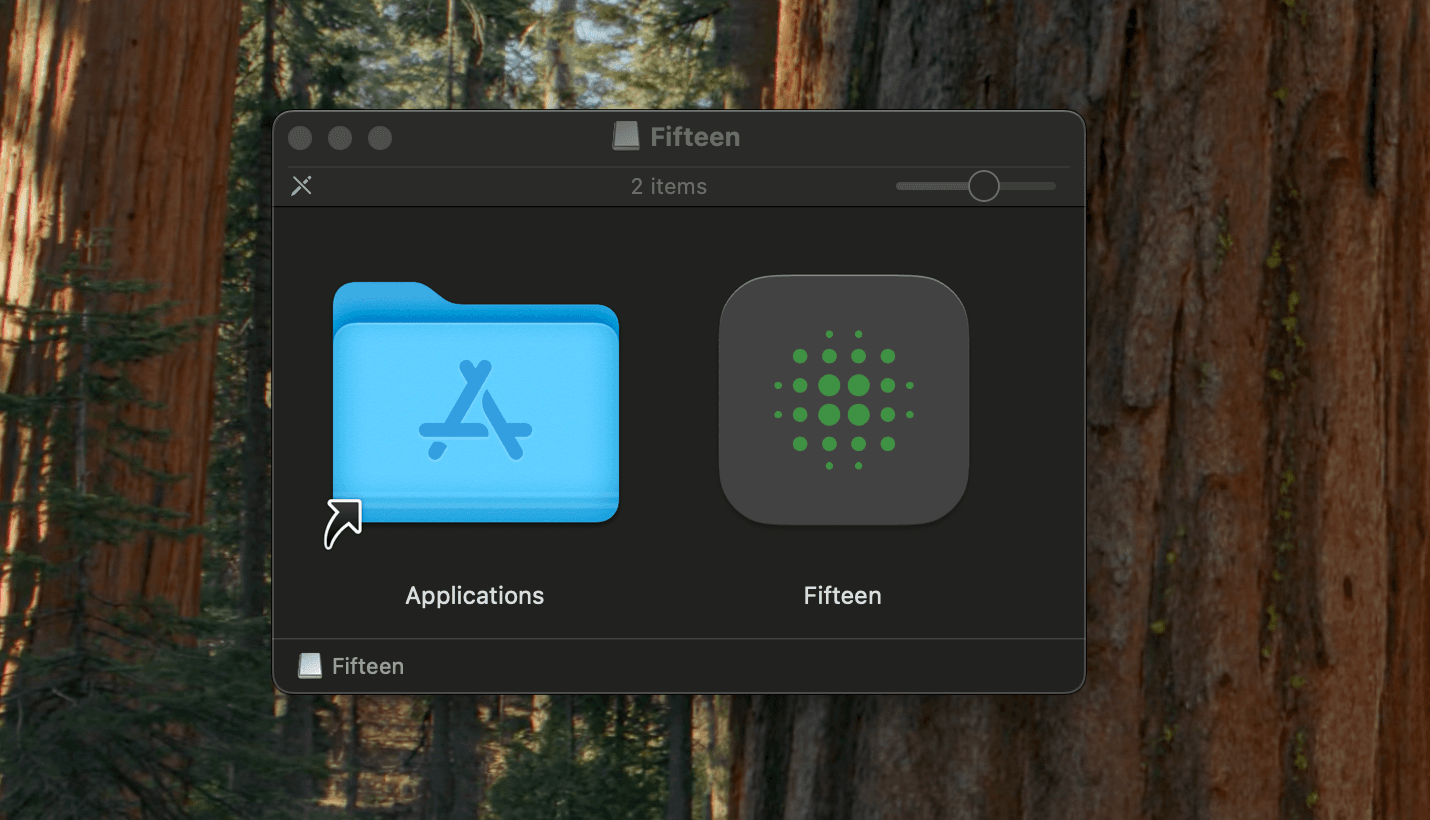
Open the DMG file you downloaded. You'll see the Fifteen app icon and your Applications folder.
Drag Fifteen into Applications. Takes like 2 seconds.
Open Applications and double-click Fifteen to launch it.
Important: macOS will probably yell at you about the app being from an "unidentified developer" the first time. Don't panic. Right-click (or Control-click) on Fifteen and select "Open" from the menu. Click "Open" again in the dialog. You only have to do this once.
When you first open Fifteen, you'll need to connect your Telegram account. The app stores everything locally on your Mac - no cloud, no servers storing your messages.
Enter your phone number and Telegram will send you a code. Type it in. If you have two-factor auth enabled (you should), you'll need to enter that password too.
What happens next
After you authenticate, Fifteen starts indexing your messages. This means it's pulling all your Telegram history and storing it locally so you can search through it later.
The first sync takes a while depending on how many messages you have. Grab a coffee. It runs in the background so you can keep using your computer.
Using Fifteen
Navigation and actions heavily rely on the command palette (⌘K), which this you can:
Browse all your chats in the sidebar.
Search through messages with ⌘K.
See your full message history even when offline.
Connect to LLMs.
Send Broadcasts and maintain Audiences.
Automate away your social life.
Was this helpful?